WordPress Media Library: How to Use and Optimize It
The WordPress Media Library is a repository that stores all the media files you upload to your website. This comprehensive guide will walk you through using the library, managing your media files, and optimizing them for better performance and SEO.
Credit: How to Use the WordPress Media Library
Using the WordPress Media Library
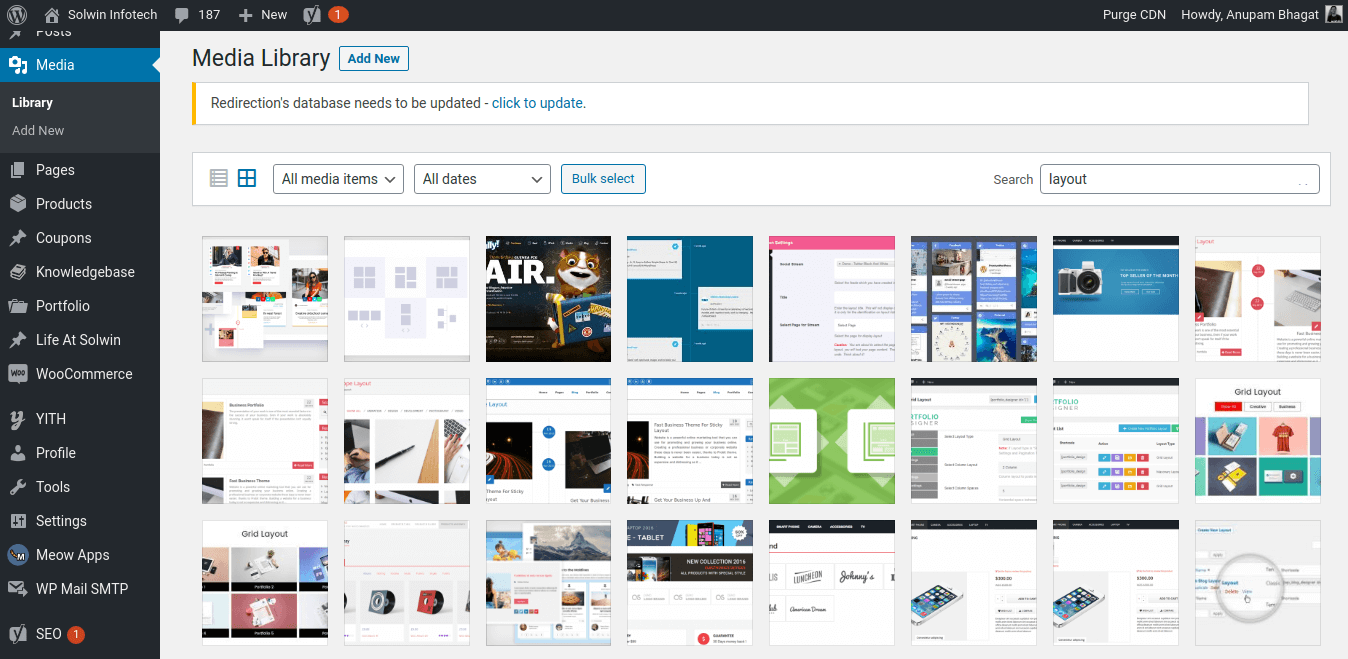
To access your Media Library, log in to your WordPress dashboard and click on “Media Library” in the left sidebar. This section of your dashboard enables you to search through the media files that you’ve uploaded, sort them based on their file types and upload dates, and upload new media files from your computer.
Clicking on any file will open a new window displaying all the details about the media file. This includes its upload date, who uploaded it, the file’s name, type, size, and dimensions. You can edit the image, add alternative text, title, caption, and description to make it SEO-friendly.
Optimizing Images for Web
High resolution images look fantastic but they can also slow down your website due to their file sizes. To ensure optimal performance, consider compressing or resizing images before uploading them using third-party services like TinyPNG or CompressJPEG.
Managing Media Files
Here are three key tips for managing your media files in WordPress:
- Add descriptive titles and alt text to every media file. This can have a positive impact on your website’s SEO.
- Optimize images before uploading them. High resolution images look fantastic, but they can also slow down your website due to their file sizes.
- Organize your media library by creating folders and naming conventions for your files.
How to Use the WordPress Media Library
WordPress Media Library Tutorial